※Transparency Matters: This article contains promotional content and affiliate links. We only recommend products we’ve personally tested and believe will help your expat life in Japan.
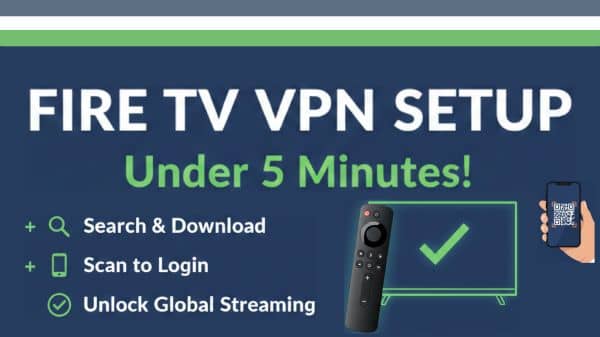
Installing a VPN on your Amazon Fire TV Stick is the fastest way to unlock global streaming content while living in Japan.
This guide focuses only on the installation process — no technical jargon, no VPN theory, no comparisons.

If you already have a VPN subscription, you can complete everything below in about 5–10 minutes.
If you’re still choosing a VPN or want to understand why VPNs are needed in Japan, see our separate guides:
👉 VPN 101: What Is It and Why Is It Used in Japan?
What You Need Before Installing a VPN on Fire TV
Before you start, make sure you have the following:
- An Amazon Fire TV Stick (any generation)
- An Amazon account (Amazon.co.jp recommended)
- An active VPN subscription that supports Fire TV
- A stable Wi-Fi connection
Not sure which VPN works best on Fire TV in Japan?
See: 👉 Best VPNs for Fire TV Stick in Japan
Step-by-Step: How to Install a VPN on Amazon Fire TV Stick

This is the core setup process.
Follow the steps in order.
Step 1: Open the Fire TV Appstore
- Turn on your TV and Fire TV Stick
- From the home screen, select Find → Search
- Make sure you are signed in to your Amazon account
Step 2: Search for Your VPN App
- Type the name of your VPN provider (e.g., NordVPN, ExpressVPN, etc.)
- Select the official VPN app from the results
⚠️ If the app does not appear, the VPN may not officially support Fire TV.
Step 3: Download and Install the VPN App
- Select Download or Get
- Wait for installation to complete (usually under 1 minute)
- Open the app once installation finishes
Step 4: Log In to Your VPN Account
Most VPN apps offer one of these login methods:
- Email + password
- On-screen code (activate via browser on phone or laptop)
Follow the on-screen instructions until login is confirmed.
Step 5: Connect to a Server
- Choose a country you want to connect to
(for example: your home region or another supported location) - Tap Connect
- Wait until the app confirms you are connected
That’s it — the VPN is now active on your Fire TV Stick.
Quick Check: Is Your VPN Working?
Most VPN apps clearly show a “Connected” status.
If the app shows that you are connected to a server in another country, everything is working as expected.
What to Do After Installing a VPN
Once installed, a VPN runs quietly in the background and requires very little maintenance.
Most users only need to:
- Open the VPN app
- Connect to a server
- Start streaming
No technical skills required.
Common Installation Problems (Quick Fix Overview)
If something doesn’t work, here are the most common issues:
- VPN app doesn’t appear in the Appstore
→ The VPN may not officially support Fire TV. - VPN connects but streaming still doesn’t work
→ Some servers may be blocked. - Connection drops or feels slow
→ Try a different server location.
👉 For full troubleshooting steps, see:
VPN Not Working on Fire TV? Universal Fix for Streaming Errors(This guide covers all fixes in detail.)
Frequently Asked Questions (Installation-Focused)
- QDo I need technical knowledge to install a VPN on Fire TV Stick?
- A
No.
Installing a VPN on a Fire TV Stick does not require technical knowledge.
- QDo I need a Japanese Amazon account to install a VPN?
- A
A Japanese Amazon account is recommended for best compatibility, but many VPN apps install normally regardless of region.
- QCan I install more than one VPN on Fire TV?
- A
Yes.
You can install multiple VPN apps, but only one can be connected at a time.
- QDo I need to change Fire TV region settings?
- A
No.
Region settings usually do not need to be changed for VPN apps to work.
- QCan I install a VPN directly on Fire TV Stick without using a router?
- A
Yes.
Many major VPN providers offer native Fire TV Stick apps that can be installed directly from the Amazon Appstore.
- QDoes installing a VPN on Fire TV Stick affect other devices in my home?
- A
No.
Installing a VPN app on your Fire TV Stick only affects that specific device.
- QCan I use a Fire TV Stick purchased outside Japan?
- A
Yes.
Fire TV Sticks purchased in other countries generally work in Japan without issues.
- QDo I need to keep the VPN connected at all times?
- A
No.
You can turn the VPN on or off at any time. Many users only connect the VPN when accessing region-restricted content and disconnect it for local Japanese streaming apps.
For a Broader Overview
This article focuses only on installing a VPN on Fire TV Stick.
If you want the full picture — including device choices, VPN selection, Amazon Prime Japan, and streaming strategies — see our complete guide:
👉 The Ultimate Guide to Streaming in Japan
You may also find these related guides helpful:
- Best VPNs for Fire TV Stick in Japan
- VPN 101: What Is It and Why Does Everyone in Japan Use It?
- VPN Not Working on Fire TV? Universal Fix for Streaming Errors